A factory reset Android (also called hard reset or master reset) restores your device to its original, out-of-the-box state—removing all personal data, downloaded apps, settings, and credentials. This can help fix persistent issues, remove malware, or prepare your phone for a new owner.
However, it does not wipe microSD cards unless you choose that option, and encrypted devices may leave residual traces unless properly sanitized.
How to backup, Factory reset Android phone to clear data or transfer device?
Before resetting, always back up your data—whether it's photos, contacts, messages, or app settings. We’ll walk through both the reset steps and the backup process in detail.
Why Do a Factory Reset?
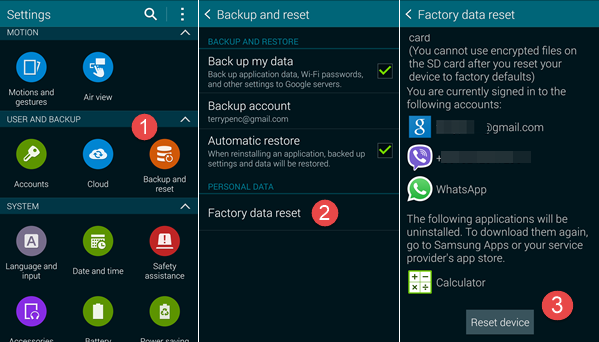
- Troubleshooting persistent glitches
If your Android is slow, crashing, or stuck in loops, a fresh start often resolves it. - Removing malware
A factory reset is effective against most malware infections, though advanced threats in firmware may remain. - Security before transfer or sale
Wiping personal data protects your privacy—just remove accounts to avoid Factory Reset Protection (FRP). - Preparing for resale or recycling
Restoring to factory ensures the device is clean, secure, and ready for the next user.
Important Pre-Reset Safety Checklist
Before you reset, ensure the following:
- Charge ≥70% and stay connected to Wi‑Fi.
- Backup all data—see next section.
- Remove microSD & SIM cards to prevent unintended wipe/mismatch.
- Sign out of accounts
- Remove Google/Samsung accounts to disable FRP.
- Unpair Bluetooth devices, disarm Find My Device, and revoke device access where needed.
- Save 2FA backup codes (Authenticator apps, Telegram, etc.) to avoid lockouts.
How to Backup Android Data
Use a combination of Google, cloud, device, and PC tools to secure your data:
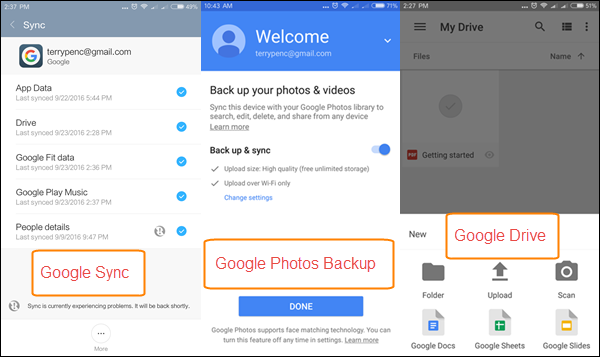
Google Cloud & Google Drive (Built-in)
- Go to Settings → Google → Backup or Backup & reset/System → Backup.
- Enable Back up to Google One and tap Back up now..
- This saves contacts, SMS, app data, device settings, call logs, and select apps.
Google Photos (Media)
Activate Backup & sync in Google Photos settings to store full-resolution media (within your Google storage limit).
Samsung Smart Switch (Samsung-specific)
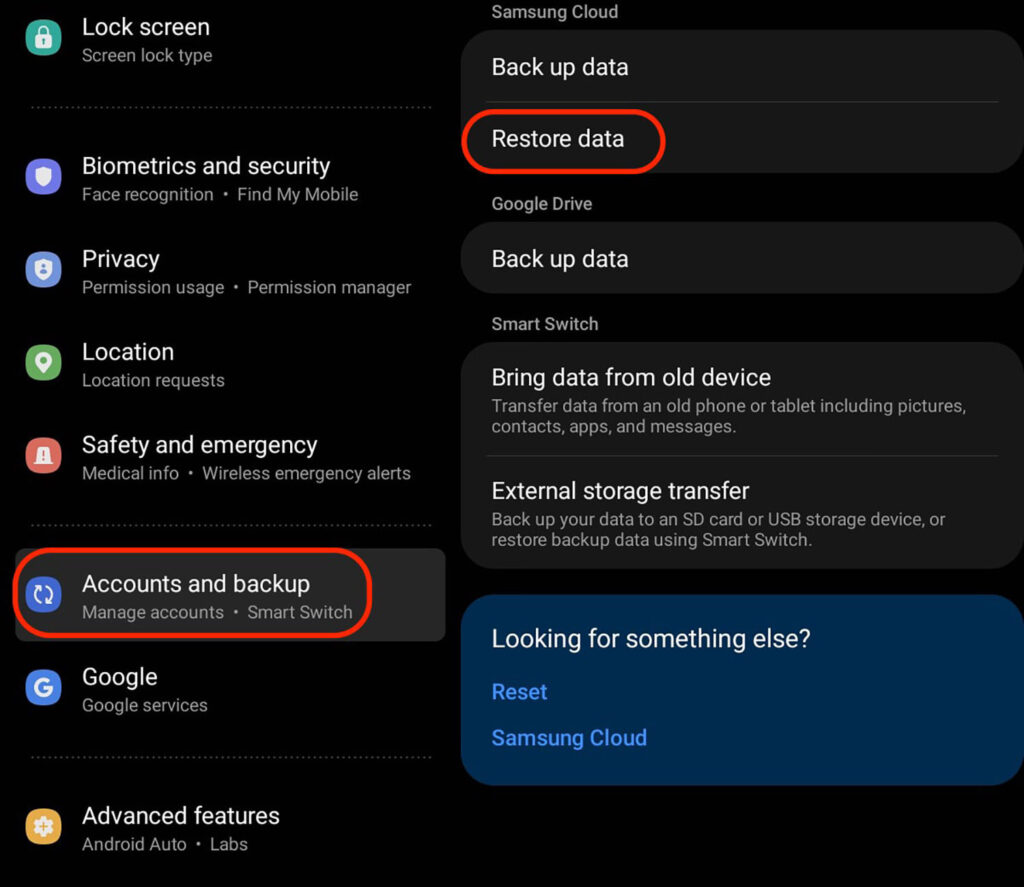
Backup call logs, settings, app data via Smart Switch or Samsung Cloud. Ensure SD card is decrypted if used as internal storage.
Third-party Backup Apps
- G Cloud Backup: contacts, call logs, media—scheduled backups.
- Titanium Backup, Super Backup & Restore, Resilio Sync: deeper app-data backups—some require root.
USB/PC Transfer
Connect via USB MTP and copy media or documents to a computer—useful for large files .
Local & Advanced Tools
- Use Android’s Local Backup (if available).
- For full device dumps, tools like Android Data Backup & Restore or Coolmuster on PC are helpful.
Removing Accounts and Disabling FRP
Flutter free from FRP lockouts:
- Delete your Google account: Settings → Accounts → Google → Remove.
- Remove Samsung or other OEM accounts too.
- Logout of payment or OEM services like Samsung Pay, Knox, etc.
- Unpair and disarm Find My Device.
Step-by-Step: Performing a Factory Reset with settings
Via Settings Menu
- Android pure/Pixel: Settings → System → Reset options → Erase all data (factory reset) → Confirm PIN → Erase all data.
- Samsung: Settings → General management → Reset → Factory data reset → Reset → Delete all.
- Other brands: Use search bar in Settings for “reset” or consult OEM support page.
Via Recovery Mode (if device is frozen/locked)
- Power off device.
- Hold Volume + Power (Samsung may include Bixby) until logo appears .
- In recovery, navigate with volume buttons to Wipe data/factory reset without password, confirm with Power, then choose Yes.
After Reset: Reinstall and Restore
Re-installing the latest version of Android OS is an important step after resetting your device. This ensures that the device is up to date and all bugs have been solved. You can do this either at boot or from settings. This step ensures your device is properly setup to install apps again and restoring your Google cloud data.
First Boot
- Go through setup—connect to Wi‑Fi, input Google/Samsung account.
- Opt to restore from previous backup when prompted.
Restore Steps
- Restore via Google backup under Settings → System → Backup.
- Reinstall Google Photos, ensure media sync.
- Use Smart Switch (Samsung) to restore additional settings.
- Use PC backup or Cloud app to re-populate files and SMS/contacts.
- Re-enable 2FA, payment services, Bluetooth devices.
Recommended Backup + Reset Strategies
| Goal | Backup Strategy | Reset Action | |
|---|---|---|---|
| Full and secure | Google backup + PC media copy + Cloud 3rd-party | UI factory reset after removing accounts | ✓ |
| Quick reset | Google + Photos backup | UI factory reset | ✔️ |
| Locked device | PC copy via recovery + cloud backups | Recovery-mode reset | |
| Secure wipe | Enable disk encryption first | Factory reset → Optional 2× wipe. |
Users can also Encrypt device prior to reset (Settings → Security → Encrypt). This scrambles residual data. Use Double reset if disposing device and you can also Physically destroy storage if giving to high-risk individual by using the above steps.
Common Pitfalls & Solutions
- Locked out by FRP: Happens if you reset without removing accounts. Must enter old account credentials during setup.
- Lost 2FA codes: Back them up or use Authy/Aegis before reset.
- SD card encrypted as internal: Must decrypt or format separately.
- Backup incomplete: Google often skips third-party app data; use additional tools for full integrity .
- Media missing: Confirm Google Photos fully synced before wiping .
Pro Tips for a Smooth Reset
- Encrypt first, then reset for maximum wipe.
- Take screenshots of home layout or settings for easy reconfiguration.
- Use Authy instead of Google Authenticator for backup.
- Local PC backup via USB ensures offline copies.
- Double-check account sign-outs, incl. Find My Device.
- Keep SD card separate, especially if used as adoptable storage.
Quick FAQ
Q: Is factory reset reversible?
No. You can restore data from a backup, but wiped data cannot be recovered.
Q: Does reset delete SD card?
Only if you check the option. Always physically remove SD pre-reset.
Q: Does reset remove malware?
Yes, nearly always—unless malware has infected lower-level partitions.
Q: Can I reset if locked out?
Yes—use recovery-mode reset. Beware of FRP during setup .
Q: Does Factory reset help in blocking Ads on android?
No. Factory reset wipes your device data so it becomes new. To block ads on android, you need to either install adblockers or root your device to write custom blocks.
Final Thoughts
Performing a factory reset Android can be powerful and essential in many contexts—from problem-solving to securing your data. The key is preparing thoroughly:
- Fully back up your Google account, media, apps, 2FA, and local files.
- Remove accounts, decrypt SD cards.
- Encrypt, then reset via UI or recovery mode.
- Restore selectively, and verify nothing is missing.
By following this guide, you’ll reset your Android device with confidence, retaining what matters and protecting what doesn't.
Comments
Post a Comment