In today’s ever-evolving mobile landscape, switching smartphones is more common than ever. But for those transitioning from Android to iPhone, the process isn't always as intuitive as it seems. Whether you're drawn to Apple’s sleek ecosystem, superior app optimization, better privacy controls, or just want to explore a new interface, knowing how to migrate from Android to iOS without losing your valuable data is crucial.
If you're looking for a step-by-step android to ios migration that’s secure, reliable, and optimized for performance, you’ve come to the right place. You can also migrate from iOS to Android using our guide making the process easy.
Why migrate from Android to iOS?
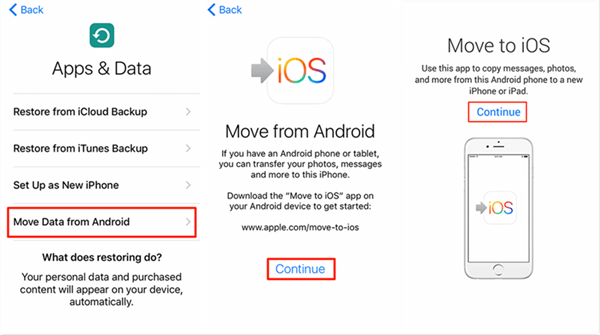
Migrating from Android to iOS
- Ecosystem integration: iOS offers seamless compatibility with Apple services—including iCloud, AirDrop, Continuity, Apple Watch, and more.
- Security & privacy: Apple’s encrypted ecosystem is often a top draw for users seeking enhanced privacy.
- App experience: While many apps exist on both platforms, iOS often gets first access to new features and updates.
- Performance & resale: iPhones typically retain value longer and offer smoother long-term performance.
However, a few challenges come with the switch, particularly in transferring data like contacts, messages, photos, and WhatsApp chats. Let’s dive into comprehensive methods for the smoothest android to ios data transfer experience.
Official ‘Move to iOS’ app (best for full device migration)
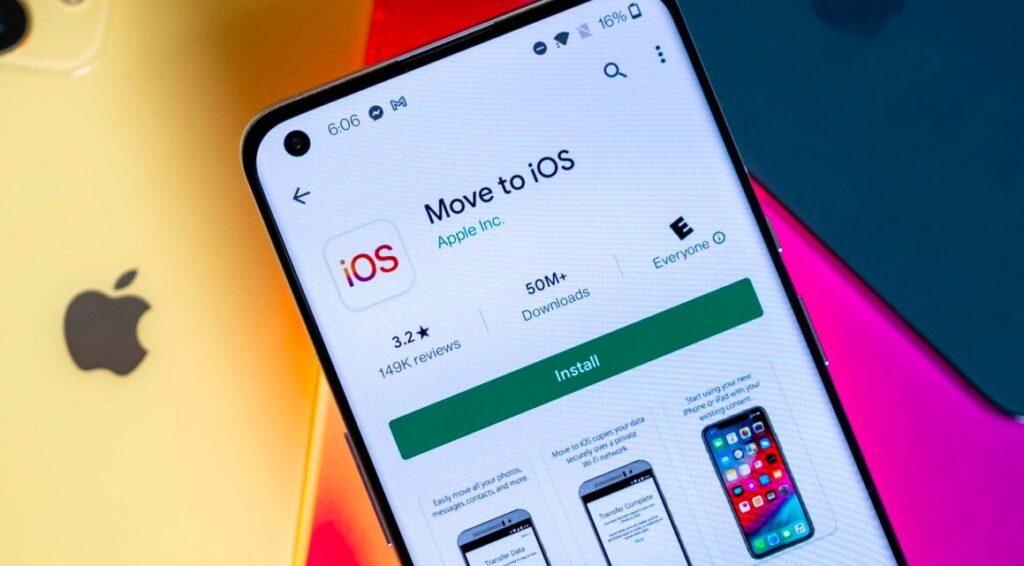
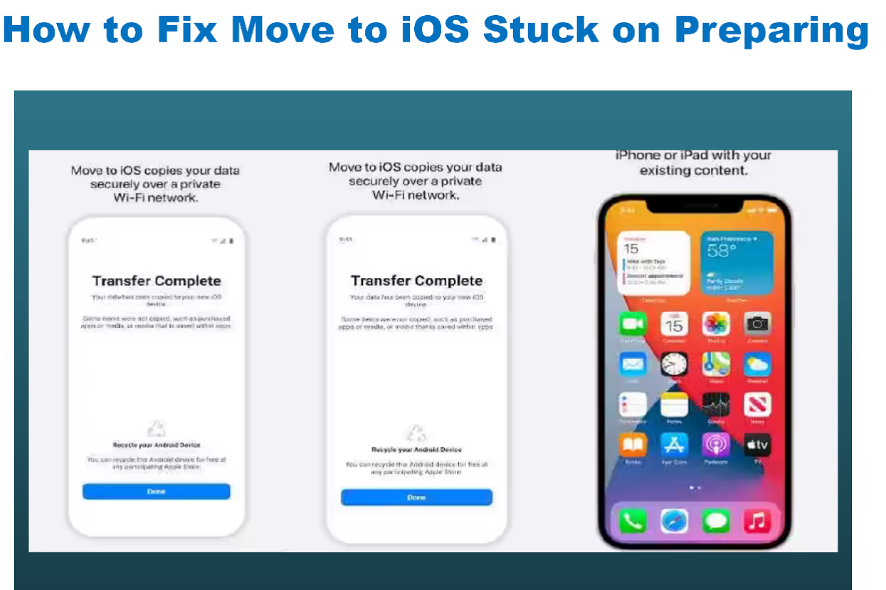
Apple’s Move to iOS app (available in Google Play) sets up a private connection between your Android and a freshly reset or new iPhone. It transfers contacts, message history, photos, videos, mail accounts, calendars, bookmarks, call history, accessibility settings, and sometimes even WhatsApp data and voice recordings.
Step‑by‑step:
- Prepare:
- Your Android must run Android 4.0+, and iPhone should be reset (or new) .
- Charge both devices fully or keep them plugged in.
- Connect Android to Wi‑Fi and disable mobile data.
- Make sure iPhone has enough internal storage.
- Start on Android: Install and open the Move to iOS app, agree to terms, tap Continue, then Next.
- iPhone setup: During iPhone setup, select Move Data from Android on the Apps & Data screen.
- Connect devices: Enter the code shown on iPhone into your Android. The iPhone creates a private Wi‑Fi network to link the devices.
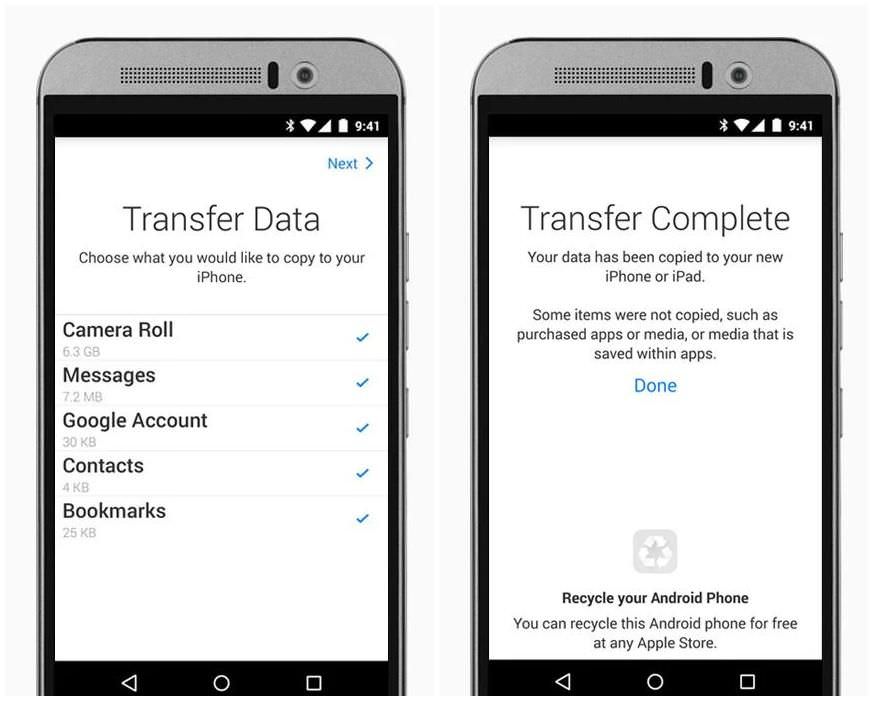
- Select what to move: Choose from contacts, messages, photos, videos, calendar events, browser bookmarks, mail accounts, call history, and supported apps. Newer versions support WhatsApp, voice memos, and Dual‑SIM labels.
- Transfer: Tap Transfer. Depending on data size and connection quality, it may take from a few minutes to several hours.
- Finish: Once done, tap Done on Android, then Continue on iPhone to finalize settings.
Pros & cons:
| Pros | Cons |
|---|---|
| Transfers most data types in one go | Must reset or start with a fresh iPhone |
| Free & official | Large data transfers can stall or take hours |
| Best for full-device migration | Photos may reorder; some WhatsApp backups glitch |
Tips for success:
- For large transfers, use a USB‑C to USB‑C or USB‑C to Lightning cable—wired is faster and more reliable.
- If the process freezes or errors out, fully reset the iPhone and retry.
- Disable Wi‑Fi auto-connect on Android and close all background apps.
Wired vs Wireless: Maximizing speed and stability
Transferring the data
- Wired (USB-C/Lightning cable): Fastest and most stable, especially for large data amounts.
- Wireless (Wi‑Fi): No cable required but can be unstable if interrupted by calls or multitasking.
- Mobile hotspot: Useful when there’s no Wi‑Fi, but speed is slower than a stable Wi‑Fi network.
Transfer only what you need: Selective methods
If you prefer migrating selective data—or your iPhone is already set up—here are solid alternatives:
Cloud storage (Google Drive, Dropbox, OneDrive)
- Upload files (photos, docs) on Android.
- Open your chosen cloud app on iPhone.
- Download or sync files to your iPhone.
Best for: selective file transfer rather than full device migration.
Email attachments
- Attach individual files to an email on Android, then open and download from iPhone.
- Ideal for one-off small transfers.
Local wi‑fi apps (LocalSend, Send Anywhere, SHAREit, Xender)
- Install on both devices.
- Transfer photos, videos, or docs locally over Wi‑Fi Direct.
- No cloud required, often very fast.
Third-party desktop tools
- Examples: MobileTrans, AnyTrans, Syncios, Dr.Fone, etc.
- Connect both phones to a PC or Mac and follow prompts to migrate data.
MobileTrans is highly recommended: it supports contacts, messages, call logs, photos, WhatsApp, etc., with no data loss.
| Tool | Highlights |
|---|---|
| MobileTrans | Direct phone-to-phone, encrypted, no cloud |
| AnyTrans | Desktop software, handles ringtones, music |
| Syncios | Backup and restore contacts, SMS, media, playlists, call logs |
| Dr.Fone | Intuitive UI, paid, covers many data types |
WhatsApp chats and messaging apps
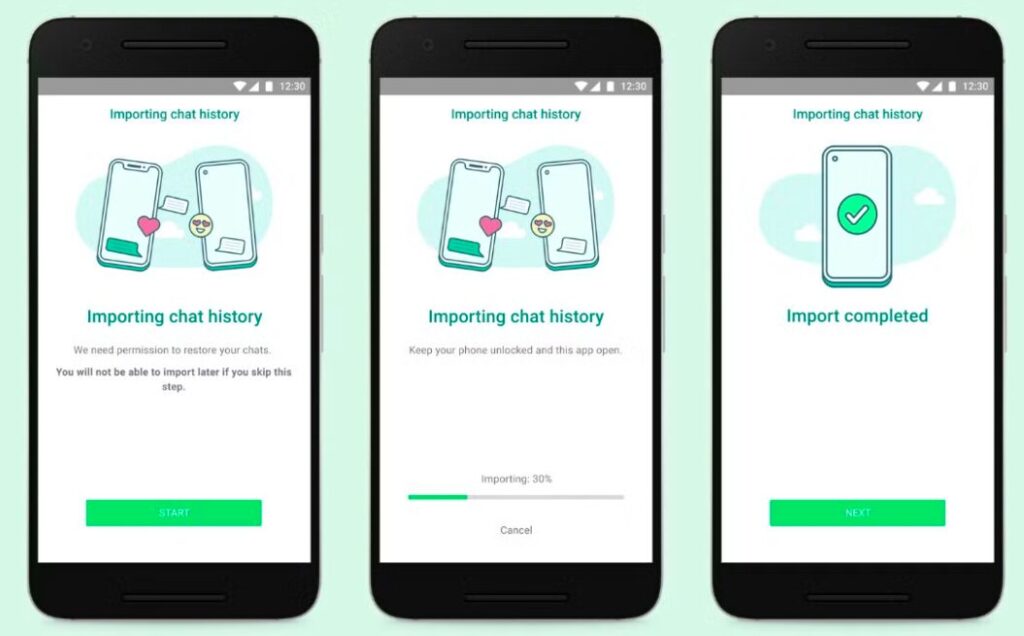
Built-in Move to iOS
- Can migrate WhatsApp only if it's supported during transfer.
- Many users report delays, corruption, or failure (long wait times, errors at ~99%).
Use backup‑based third-party tools
- Tools like Backuptrans, iCareFone, or Dr.Fone claim to transfer WhatsApp chats selectively.
- Beware: some are paid and may present security risks.
From app login
- Messaging apps (Telegram, Signal, Slack) often sync data server-side; just install and log in.
- For WhatsApp, iOS requires an encrypted local backup from Android during Move to iOS.
Best practice:
- Export critical chats via email or third-party software.
- After switching, test a small backup sample before migrating everything.
Contacts, calendars & email
Sync via Google account
- On Android: sync contacts/calendars to Google account. Android 16 also offers higher data transfer speeds to sync your data easily.
- On iOS: go to Settings → Mail → Accounts → Add Google, then enable sync for Mail, Contacts, Calendars.
Top benefits: back-and-forth sync, no resets, works post-migration.
Music, DRM, and media files
- DRM‑protected music (Apple Music, Spotify) won’t transfer directly—log into accounts on iOS after installation.
- Non-DRM MP3/FLAC files can be moved via:
- Desktop tools like Syncios, iTunes, AnyTrans.
- Or manually: upload via cloud service → download to Files or Music app.
Other data types
- Ringtones: don’t transfer via Move to iOS—use iTunes or desktop tools.
- Notes, voice memos: Move to iOS might include some, but verify after migration.
- Apps: must reinstall from the App Store; Move to iOS only suggests free apps.
- Browser bookmarks: gets transferred if using Chrome or default browser; verify in Safari.
Troubleshooting common issues
Stuck or extremely slow transfer
- Use wired connection instead of Wi‑Fi .
- For large transfers, leave devices idle and charged—many users report 20 min → 7 hr waits to finish .
- Restart both devices and retry if the process never starts.
Errors at “Preparing” stage or missing code
- Ensure latest OS and app versions are installed on both phones.
- Disable other Wi‑Fi networks and mobile data during transfer .
- Reset and retry if code doesn’t appear or freezes.
WhatsApp failures
- If chat transfer fails, export using WhatsApp’s chat export feature or a third-party backup tool.
Photos out of order
- Photo timestamps may reset—use Google Photos or Dropbox to preserve metadata.
Checklist: migrate from Android to iOS smoothly
- Decide full or selective migration.
- Prepare devices: charge, reset iPhone if needed.
- Use Move to iOS for full transfer.
- Or selectively migrate using:
- Cloud storage.
- Local Wi‑Fi apps.
- Desktop tools (MobileTrans, AnyTrans, Syncios, Dr.Fone).
- Manual Google-account sync for contacts/calendars.
- Email for one-off files.
- Handle WhatsApp/chat apps:
- Use Move to iOS if supported—but expect delays.
- Or export selectively or use backup tools.
- Reinstall apps and log in to streaming services, messaging apps.
- Verify everything transferred: contacts, messages, photos, chats.
- Clean up old Android: factory reset once satisfied and backed up.
Final checks for migrating Android to iOS
Migrating from Android to iOS can be as easy or granular as you like:
- For full-device, minimal hassle: use Move to iOS with a wired connection.
- For selective transfers or already set-up iPhones: explore cloud services, local transfer apps, or desktop solutions like MobileTrans.
Be ready for occasional hiccups—WhatsApp, photo ordering, or stalled transfers—but with patience and preparation, you can move from Android to iOS smoothly. The benefit of Android over iOS is improved customisation and options to enable javascript and have control over control of OS. But as iOS has improved security, the payoff is a fully functional iPhone integrated into Apple’s ecosystem.
Comments
Post a Comment