In today’s world of social media, a plain selfie is not always enough to get noticed. That’s where Snapchat filters help. These fun tools let you add style, personality, and cool effects to your photos and videos with just a swipe. Whether you're taking a photo with friends, snapping a selfie, or sharing a nice view, Snapchat filters can quickly make your Snap look more fun and interesting.
But what exactly are Snapchat filters? How do you use them like Snapchat Usernames? Which ones are best for photography? And how can you use them to look cool and confident in your selfies? We will explore everything you need to know about best Snapchat filters from the basics to the best filters for photos and tips to help you take your Snap game to the next level.
Best Snapchat Filters for Selfies, Beauty and Aesthetic
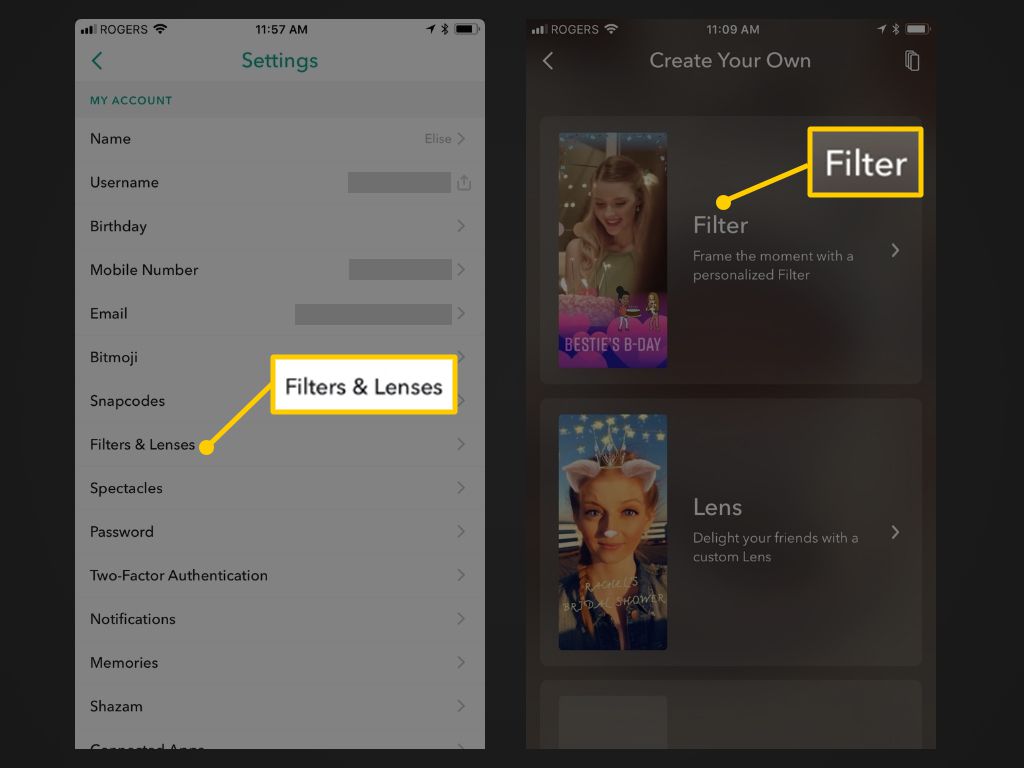
Snapchat filters are fun tools you can use on the Snapchat app. They add cool effects to your photos and videos. There are two main types. First, there are filters. These are simple designs you swipe on after taking a snap. Then, there are lenses. You use these before you take a photo or video. Even though they are different, many people just call both of them "filters."
People love Snapchat filters because they are easy to use. They make sharing moments more fun. Some filters are free and others are made by different creators. If you want to look better in a photo, some filters can smooth your skin or add nice lighting. In short, Snapchat filters help turn simple photos into something fun and special.
How to Use Snapchat Filters on photos
Using Snapchat filters is easy and does not take much time. If you are new to Snapchat or just want to improve your Snapchat Streak, follow these steps.
Turn on Snapchat Filters online in Settings
Before using filters, first, make sure they are turned on. Open Snapchat and tap your profile icon at the top left. Then, tap the gear icon to open settings. After that, find Additional Services and tap Manage. Next, turn on Filters. Also, make sure your phone’s location services are turned on for Snapchat. This helps filters like geofilters work properly.
Take a Snap with front camera
Next, take a photo or video. Open the camera screen in Snapchat and tap the round circle at the bottom to take a photo. Then, press and hold it to record a video. After taking your Snap, you are ready to apply filters.
Swipe Left or Right to Apply Filters from Snap Filters menu
After you take a Snap, swipe left or right to look through the filters. You will find filters that change colors, add borders, or show details like speed, time, or temperature. Keep swiping until you find one that matches the mood or style you want.
Test looks by Use Multiple Filters at Once
Want to use more than one filter? You can layer them. After applying the first filter, tap and hold the screen with one finger. Then, swipe again with another finger to apply a second filter. You can often stack two filters, like a color tone and a location tag.
To get best snapchat selfie, Add More Effects
Besides filters, you can tap the sticker icon to add Bitmoji stickers, emojis, or even weather and time overlays if they didn’t appear before. You can also draw on your Snap, add text, or attach links.
Top 7 Snapchat Filters for Girls and Boys Selfies
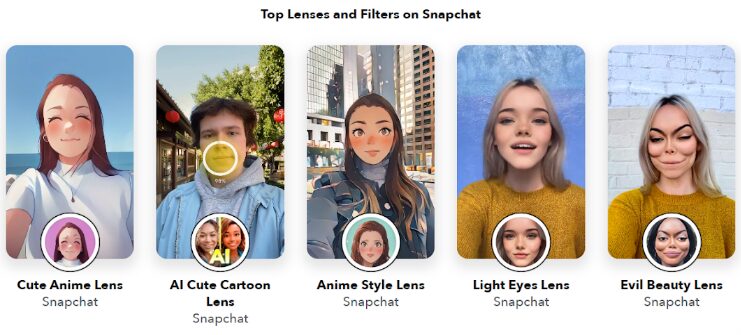
Snapchat filters are great for photography because they enhance colors, add moods, and make photos look more professional. Here are the top 7 Snapchat filters that photographers love. Each one has special features you can try to make your pictures stand out.
- Polaroid Frame: This Snapchat filter gives your photo a vintage look, like an old instant camera picture. It adds a white border and soft colors. You can use it for portraits or street photos to create a nostalgic feeling. Photographers like it because of its simple and charming style.
- Golden Hour Glow: This filter adds a soft, golden light that looks like the sun at sunset. It makes your skin look warm and smooth, and gives a calm, peaceful feeling to portraits. It’s great for selfies or outdoor photos.
- Natural Beauty filter: As the name says, this Snapchat filter gently improves your look without making it obvious. It evens out skin tone and sharpens your eyes. It’s great for close-up shots or selfies in nature. Photographers like it because it keeps things natural but polished.
- Anime Style: This filter changes your face into a cartoon-like anime character. It gives you big, expressive eyes, smooth skin, and a stylish look. It’s fun and popular, especially with fans of anime and cartoons.
- Cartoon 3D Style: This fun filter turns your photo into a 3D cartoon. The colors become bright, and the edges stand out. You can use it for creative photos, like making a park look like a comic book. It’s popular for adding a unique style.
- Face Swap Lens: Even though this is a lens, it’s a must-try for fun portraits. It lets you swap faces with a friend, a pet, or a photo from your camera roll. It is great for laughs and works really well.
- Vogue Noir: This filter copies old film cameras with light leaks and date stamps. It’s great for retro style photos. Use it on travel pictures to give them a real vintage feel. Many people say it makes regular photos look artistic.
These Snapchat filters are great for both beginners and experts. Try them in different lighting to find what looks best. Also, use good photo composition for amazing results. Finally, share your edited photos on your story to get feedback from friends.
How to create Snapchat Filters that look best?
Looking cool in selfies is easy with Snapchat filters. They can make you seem confident and stylish without much work. Everyone wants to take a cool selfie. Snapchat filters can help you stand out, but it’s important to use them the right way. Here are some tips to help you look great using Snapchat filters.
- Choose the Right Filter for the Mood: Think about the mood you want for your selfie. If you want a warm and calm feeling, use Golden Hour Glow. If you want a bold and stylish look, try Vogue Noir. For a playful and cute vibe, use Cute Doll Eyes or Anime Style. Picking a filter that matches your mood makes your selfie look more natural and confident.
- Focus on Your Best Features: Use filters that make your eyes, skin, or smile stand out. For example, Cute Doll Eyes focuses on your eyes, while Golden Hour Glow makes your skin look healthy and glowing.
- Don’t Overdo It: Filters are fun, but using too many effects can make your photo look fake. So, keep it simple. Sometimes, just one filter is enough. If you use more than one, make sure they look good together and don’t cover your face too much.
- Add Geofilters When You are Out and About: If you are at a cool event or in a nice location, use a geofilter to show it off. It adds context to your Snap and shows people where you are. It also makes your selfie more interesting and memorable.
- Combine Filters and Lenses for a Unique Look: Snapchat lets you be creative. You can use a lens to change your face and then add a filter to change colors or add details. First, use the Cartoon 3D Lens to make a fun version of yourself. Then, after you take the Snap, apply the Polaroid Frame filter for a cool, stylish finish.
Using Snapchat Filters to Look Your Best
Snapchat filters are a fun and easy way to add creativity and personality to your photos and videos. They help you show who you are, highlight your best features, and share your location or mood. By learning and testing users with tools like Onlytraced snapchat, and using these filters well, you can make your selfies and photos look even better.
Remember, the best Snapchat filters for photography like Golden Hour Glow or Vogue Noir can make your photos look stylish and professional. For selfies, picking the right filter and keeping it natural will help you look cool and confident. So, try different Snapchat filters, have fun, and let your creativity shine with every Snap you take. To read more tips for Snapchat, bookmark our website and follow us on social media.
Comments
Post a Comment